
NetSupport has released an updated version of NetSupport Manager to address the below vulnerability reports raised. We would like to thank the Security researcher, Chris Leech, for bringing these threats to our attention and for allowing us the time to build a fix and notify our customers.
- CVE-2025-34179: Information disclosure via unauthenticated SQL injection
- CVE-2025-34180: Weak password encoding
- CVE-2025-34181: Remote code execution via arbitrary file upload
A solution for each of the reports above has been included in NetSupport Manager 14.12.0001 released on 15th Dec 2025. To protect your NetSupport Manager installation against the above, we recommend performing the following actions:
- Step 1 – Update your NetSupport Manager Gateways, Controls and Clients to version 14.12.0001.
When the different components of NetSupport Manager are updated, the Gateway key will be automatically updated and stored using AES encryption. - Step 2 – Update any AD or Intune Policies that may be applying old, encrypted variants of the NetSupport Manager Gateway Keys.
This article explains how to perform each of the above to secure your NetSupport Manager installation.
Patching earlier version NetSupport Manager Gateways: For NetSupport customers running NetSupport Manager Gateway Servers on version 12.70 to 12.80 or 14.00 to 14.10 versions, an update is available for the two following vulnerabilities that relate to the Gateway Server – CVE-2025-34179 and CVE-2025-34181.
A version 12.80.0017 and 14.10.0007 is available to download from the My Support area after registering your NetSupport Manager 12.70 or 14.00 license key. Please contact NetSupport Technical Support for further details on accessing these.
IMPORTANT: If you believe you may have a compromised NetSupport Manager Gateway Key then we recommend adding a new key to the Gateway Server after updating your installation and then migrating all NetSupport Manager Clients and Controls to the new Gateway key. If you need any assistance on this process, please contact NetSupport Technical Support.
Upgrading the NetSupport Manager components to 14.12.0001
The updated version for NetSupport Manager 14.12.0001 that includes the solution to each of the vulnerabilities raised is available for download from our website at https://www.netsupportmanager.com/downloads Alternatively, if you have registered on the My Support area, you can log in and download from here https://support.netsupportsoftware.com/
The below outlines the procedures available to update the different NetSupport Manager components.
Upgrading the NetSupport Manager Gateway Server
We recommend updating your NetSupport Manager Gateway Server component first.
- Note: If you are utilising the NetSupport Manager Gateway Load Balancing functionality please contact the NetSupport Technical Support team for the specific steps to update this environment.
- Note: If you are also using a shared NetSupport Manager Gateway with NetSupport Notify, there is no requirement to install NetSupport Notify after updating to the 14.12.0001.
For standalone NetSupport Manager Gateway Server environments to perform the update you will need to ensure that you have the required NetSupport Manager installer files ready, this will include the below:
- Setup.exe – NetSupport Manager full installer file for version 14.12.0001
- NSM.lic – Your version 14.12 NetSupport Manager License file will be required
Place the above files in the same folder location on the Gateway Server. Next follow the steps below to start the NetSupport Manager installation over the top of the existing NetSupport Manager Gateway.
- Click Next on the Welcome Screen

- This will detect the previously installed components, click Next to continue
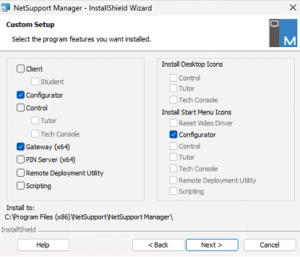
- Click Install to begin the installation
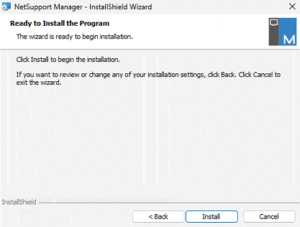
- The installation of the new Gateway version will commence

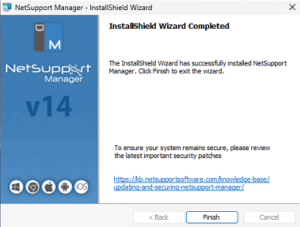
- Click Finish to complete the installation.
Upgrading the NetSupport Manager Clients
To perform the update of the NetSupport Manager Clients you will need to ensure that you have the required NetSupport Manager installer files ready, this will include the below:
- Setup.exe or NetSupport Manager.msi – NetSupport Manager full or Client only installer file for version 14.12.0001.
- NSM.lic – Your version 14.12 NetSupport Manager License file will be required.
- Client32u.ini – The Client configuration.
- NSM.ini –The Install parameters file (used for automated installs to set which NetSupport Manager components to install, check this is configured to install the required components i.e Client component).
Please place these files in the same folder location. There are then different methods available to update your NetSupport Manager Client installations, the method chosen may depend on the initial deployment method used to install the Client onto your devices. Available options include:
- Local installation
- Active Directory group policy deployment
- Intune deployment
- NetSupport Manager Deploy tool
- Deployment via other 3rd party deploy tools
Please find links to resources below to assist with updating the NetSupport Manager Clients.
Intune deployment: https://kb.netsupportsoftware.com/knowledge-base/deploying-netsupport-products-via-microsoft-intune
Active Directory Group Policy deployment : https://kb.netsupportsoftware.com/knowledge-base/installing-netsupport-manager-or-netsupport-school-via-active-directory-group-policy-software-deployment
Local installation: https://resources.netsupportsoftware.com/resources/manualpdfs/nsm_manual_uk.pdf
Upgrade the NetSupport Manager Controls
To perform the update of the NetSupport Manager Controls you will need to ensure that you have the required NetSupport Manager installer files ready, this will include the below:
- Setup.exe or NetSupport Manager.msi – NetSupport Manager full installer file for version 14.12.0001.
- NSM.lic – Your version 14.12 NetSupport Manager License file will be required.
- NSM.ini – The Install parameters file (used for automated installs to set which NetSupport Manager components to install, check this is configured to install the required components i.e Control).
Please place these files in the same folder location. There are then different methods available to update your NetSupport Manager Control installations, the method chosen may depend on the initial deployment method used to install the Control onto your devices. Available options include:
- Local installation
- Active Directory Group Policy Deployment
- Intune Deployment
- NetSupport Manager Deploy tool
- Deployment via other 3rd party deploy tools
Intune Deployment : https://kb.netsupportsoftware.com/knowledge-base/deploying-netsupport-products-via-microsoft-intune
Active Directory Group Policy deployment : https://kb.netsupportsoftware.com/knowledge-base/installing-netsupport-manager-or-netsupport-school-via-active-directory-group-policy-software-deployment
Local installation: https://resources.netsupportsoftware.com/resources/manualpdfs/nsm_manual_uk.pdf
Updating the encrypted Gateway Key values assigned to the Control and Client via Policies
As well as locally configuring the Gateway connections details on the NetSupport Manager Controls and Clients, it’s possible to also assign the Gateway connection details to both the Control and Clients using the supplied NetSupport ADM or ADMX template files. If you were previously assigning the NetSupport Manager Gateway connection details via policies to your devices then after updating the Control and Clients to NetSupport Manager 14.12.0001, it will be required to update any NetSupport Policies applying the previous encrypted value to the new AES encrypted value for the Gateway Key.
IMPORTANT: When applying the encrypted Gateway Key value via Policy to your machines ensure the value is generated using the latest Encryption utility. This will ensure that the value applied to your NetSupport Manager Controls and Clients is using the AES encryption level.
Updating the NetSupport Manager Gateway Key applied to the Control via Policy
To locate the policy for the Control, within your Active Directory Group Policy Management Console or Intune Policies locate the previous policy assigning the Gateway connections to your Controls and choose to edit the Policy.
- Active Directory Policy location
Each Gateway connection assigned to the NetSupport Manager Control via the Active Directory Group Policy Management Console will be located from:
Administrative Templates > NetSupport Manager Control > Connectivity > Transport > Server Connections

- Intune Policy location
Each Gateway connection assigned to the NetSupport Manager Control via Intune Policies will be located from:
Computer Configuration/\/NetSupport Manager Control/\/Connectivity/\/Transport/\/Gateway Connections

Within the above sections of the Active Directory or Intune policy management will find a list of Gateway Connections assigned via policy. For any that are enabled and assigning the older encrypted value for the Gateway key, edit these policies and replace the encrypted key to the new AES version of the Gateway Key.
The AES version of the encrypted Gateway key can either be acquired from the NetSupport Manager Control via the Gateway connection properties from a NetSupport Manager Control that has been updated to 14.12.0001 or generated from the latest encryption tool. The latest encryption tool can be requested from the NetSupport Support Team.
Updating the NetSupport Manager Gateway Key applied to the Clients via Policy
Within your Active Directory Group Policy Management Console or Intune Policies locate the previous policy assigning the Notify Server Connections details and edit the Policy.
- Active Directory Policy location
The Gateway connection assigned to the NetSupport Manager Client via the Active Directory Group Policy Management Console will be located from:
Administrative Templates > NetSupport Client Settings > Master Profile > Connectivity > Transports

- Intune Policy location
The Gateway connection assigned to the NetSupport Manager Client via Intune Policy Management will be located from:
Computer Configuration/\/NetSupport Client Settings/\/Master Profile/\/Connectivity/\/Transports

Within this section of the AD or Intune policy management Locate the policy named HTTP Gateway Settings and edit this policy. Replace the encrypted key to new AES version of the Gateway Key within the policy:
The AES version of the encrypted Gateway key can either be acquired from the NetSupport Manager v14.12.0001 Client Configurator or generated from the latest encryption tool. The latest encryption tool can be requested from the NetSupport Support Team.