
The Require logged-on user to accept connections setting allows you to require approval before a remote connection can be established to devices within a specific device group.
This setting is commonly used for staff devices or other selected devices where remote access should only be permitted after someone at the device has acknowledged the connection request.
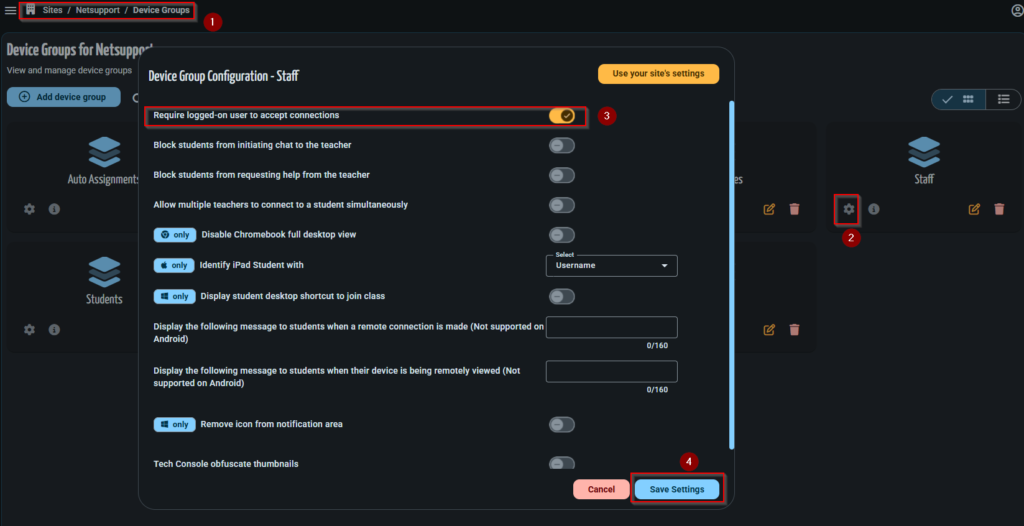
Enabling user acknowledgement
- Sign in to the classroom.cloud Web Portal.
- Navigate to Sites > [Site Name] > Device Groups.
- Locate the required device group (for example, Staff) and click the Settings (⚙) icon.
- In the Device Group Configuration window, enable the Require logged-on user to accept connections option.
- Click Save Settings to apply the change.
How user acknowledgement works
When Require logged-on user to accept connections is enabled for a device group, every remote connection request to a device within that device group requires user acknowledgement before a remote session can be established.
When a connection request is received, a User Acknowledgement prompt is displayed on the device. The remote session will only begin after the request has been accepted.
If the request is rejected, the remote connection will not be established.
The User Acknowledgement prompt is displayed on the device regardless of whether a user is currently signed in to Windows. If the device is at the Windows sign-in screen or is locked, someone at the device must still accept the prompt before the remote session can be established.
This setting applies only to devices that are members of the configured device group and helps ensure that remote access always requires approval from someone physically present at the device.