
The NetSupport Manager Connectivity Server (Gateway) supports the ability to apply SSL or TLS certificates to ensure that all data sent across the NetSupport Manager Connectivity Server is encrypted. It is possible to apply your own SSL/TLS certificate. Alternatively, the NetSupport Manager Connectivity Server provides the option to create and use a Let’s Encrypt certificate.
This needs to be configured in the NetSupport Manager Connectivity Server Configuration Utility under the Security tab, as shown below.
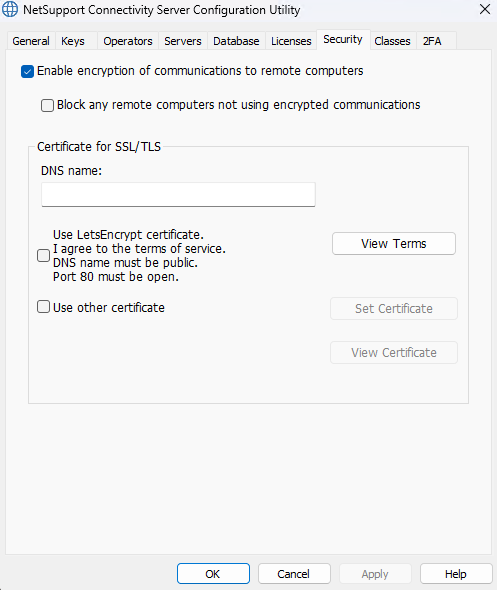
DNS name
Enter the DNS name for the Gateway.
Use Let’s Encrypt Certificate
Select this option to use a Let’s Encrypt certificate. The Gateway will automatically create a certificate that is valid for 90 days and renew it every 60 days.
By selecting this option, you are agreeing to the terms of service.
Click View Terms to read the Let’s Encrypt Subscriber Agreement.
Notes:
- The Gateway must have a public DNS name.
- Port 80 must be open.
Use other certificate
If you already have an SSL/TLS certificate, you can add it here. Click Set Certificate and browse for the certificate.
View Certificate
Once a certificate has been applied, you can view it here.
Note: You can configure the Clients and Controls to only connect to a Gateway if it has a valid SSL/TLS certificate.
The options for this are shown below.
Client:
Enable the Require HTTPS option in the Client configurator. This can also be set under the Gateway settings Group Policy.
Control:
Enable the Require HTTPS/TLS option in the Internet Gateway properties. This can also be set under the Gateway Connection Group Policy.
A secure indicator  will appear next to the Client if it’s running over a secure SSL/TLS connection.