
This article explains how to search the Safeguarding Matches report for a specific user using the available filters and search options. It also describes how to export the filtered results to a CSV file for reporting, auditing or further investigation.
Permissions required
Access to Safeguarding Matches requires the appropriate Safeguarding permissions within the classroom.cloud Web Portal.
Accessing Safeguarding Matches
- Sign in to the classroom.cloud Web Portal.
- Navigate to Safeguarding > Safeguarding Matches.
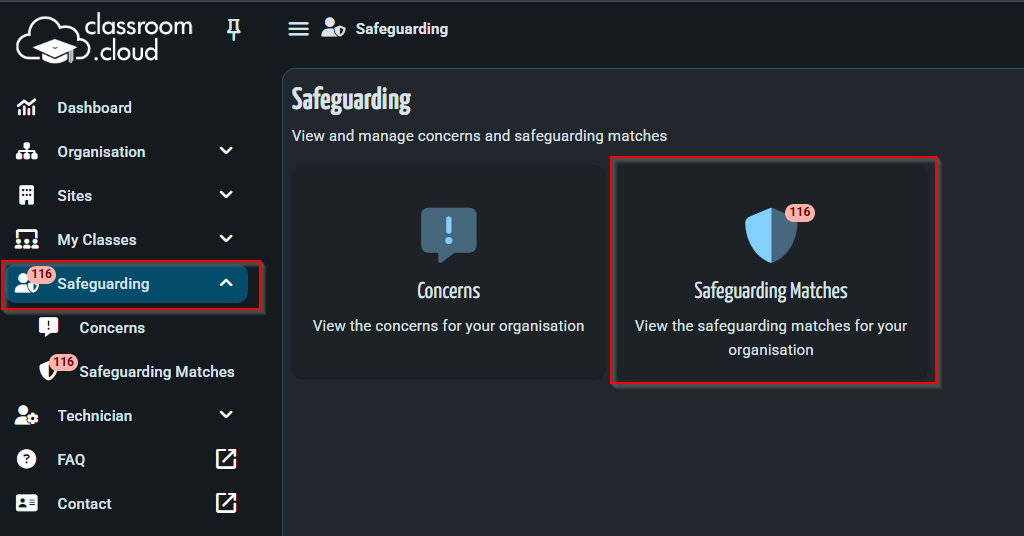
When the Safeguarding Matches page opens, it displays phrase detections from today by default. To search for historical data or a specific user, adjust the available filters.
Before you search
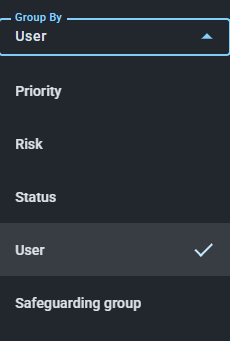
Before searching for a specific user, set the Group By option appropriately.
- User – Displays results grouped by user and is recommended when searching for an individual user’s phrase detections.
- Safeguarding Group – Use this option if you want the exported CSV report to include the User column.
Once you have selected the grouping options, use the filters and Search box to narrow the results.
Applying filters
Use the available filters to narrow the results before performing your search.
| Filter | Description |
| Status | Filter by phrase status: New, In Progress, Completed, or False Alarm. |
| Category | Display phrases from a specific safeguarding category or leave set to All. |
| Source | Filter by the source of the phrase detection, such as Copied Text, Copilot, Image, or Microsoft Teams. |
| Priority | Display only phrases with a selected priority: Urgent, High, Medium, or Low. |
| Risk | Filter results by a selected risk level. |
| Site | Display results from a specific classroom.cloud site. |
| Safeguarding Group | Filter by a configured Safeguarding Group. |
| Device Group | Filter results for a specific device group if known. |
| Class | Filter by a particular class if required. |
| Teacher | Filter by a specific teacher if required. |
| Date | Select a specific date or date range. Using a smaller date range improves search performance, especially where a large amount of phrase data exists. |
| Time | Optionally filter results within a specific time by selecting Between. Leave this off if time filtering is not required. |
Note: Multiple filters can be combined to produce more specific search results.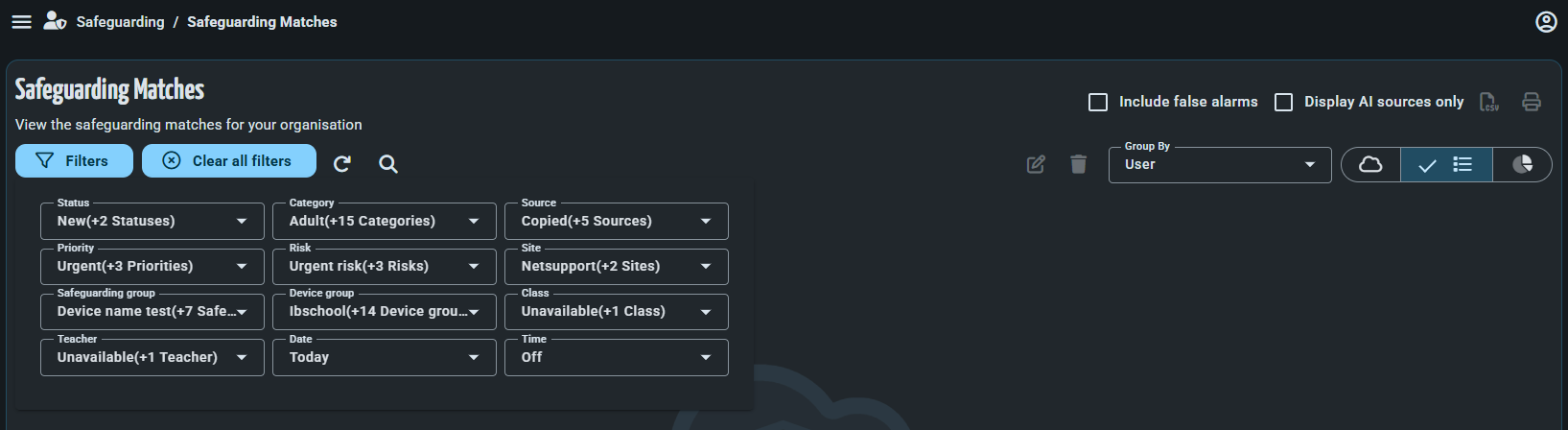
Searching for a specific user
After applying the required filters:
- Ensure Group By is set to User or Safeguarding Group.
- In the Search box, enter the user’s:
- Name, or
- Email address (if applicable).
- Press Enter or wait for the results to refresh automatically.
Only phrase detections matching the specified user and selected filters are displayed.
Example search
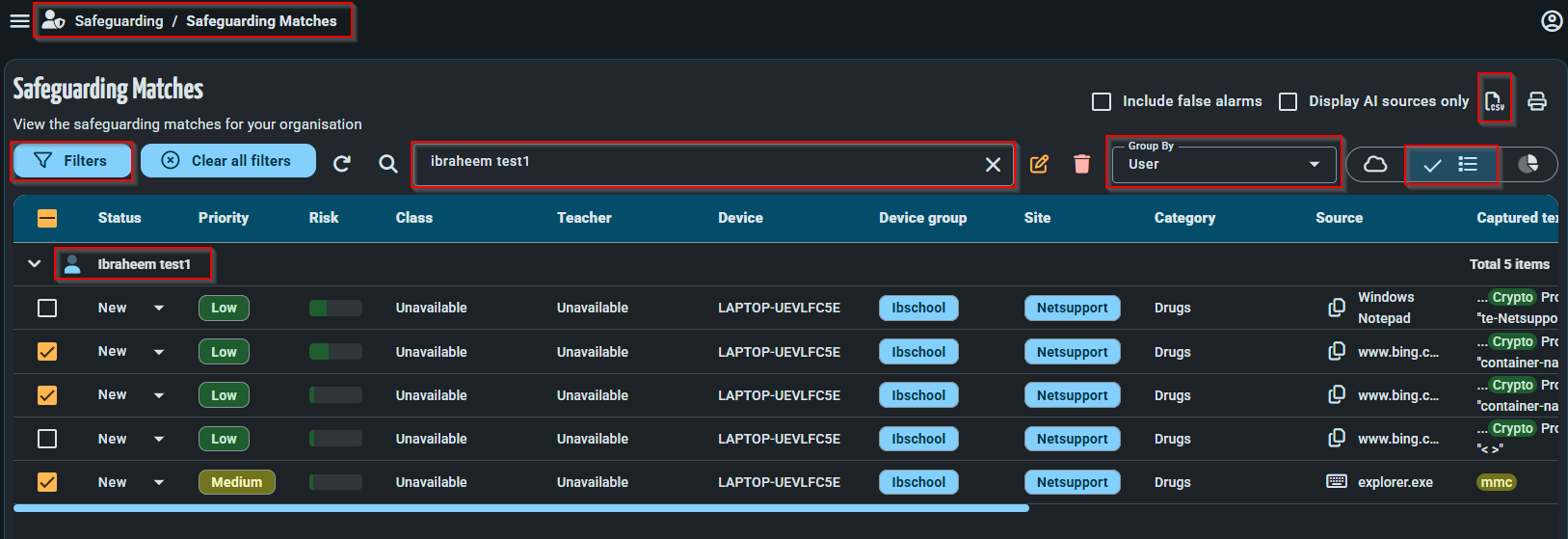
The following example searches for all phrase detections for a single user over the previous six months.
Filters
- Status: New and In Progress
- Site: NetSupport
- Priority: Select all
- Date Range: Last 6 Months
Group By
- User
Search
- Ibraheem test1
This returns all type of Priority phrase detections for the selected user during the previous six months.
Exporting the filtered results
Once the required results are displayed:
- Verify that the results match the required search criteria.
- Select the phrase detections you wish to export.
- Click the Export to CSV icon in the upper-right corner of the page.
- The CSV file is saved to your computer.
Only the selected and currently filtered results are included in the exported report.
Best practices
- Apply filters before exporting to reduce unnecessary data.
- Use a smaller date range where possible to improve report performance.
- Verify the selected user before exporting the report.
- Review the exported CSV file to confirm it contains the expected data.
Summary
The Safeguarding Matches page enables you to quickly locate phrase detections for an individual user by combining the available filters with the search function. Filtering helps narrow the results, making investigations more efficient. Once you have identified the required information, you can export the filtered and selected results to a CSV file for reporting, auditing or further analysis.