
Skip to main content
You can manually enable two-factor authentication within classroom.cloud. This can be activated in the following locations:
- Organization > Users
- Sites > {{Site name}} > Users
Click the Edit icon next to the account you wish to change, then use the 2FA Enabled toggle to enable two-factor authentication.
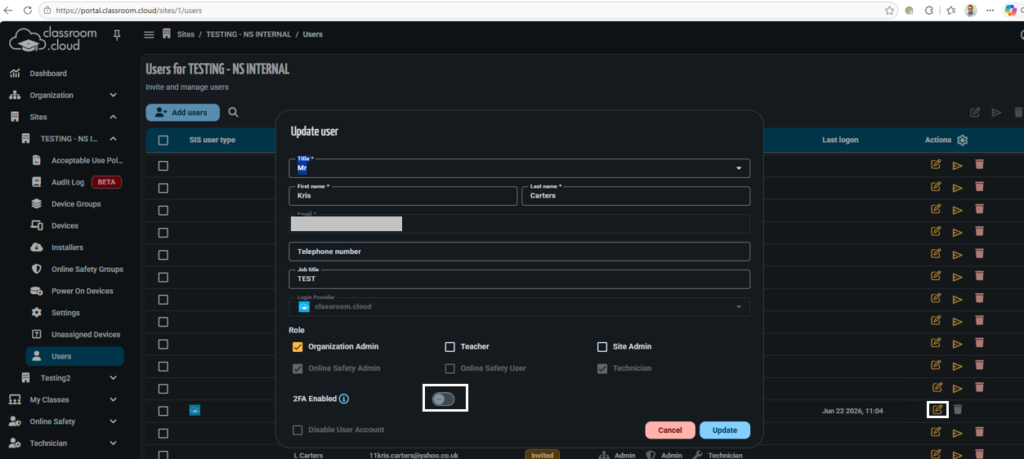
Once enabled, classroom.cloud displays a QR code to scan or a secret key. You will need to secure your account by linking an authenticator app (such as Google Authenticator or Microsoft Authenticator). You can then link the authenticator app using the following method:
- Open your authenticator app and choose Add account > Scan QR code.
- Scan the QR code shown and confirm the account name.
- Enter the 6-digit code and click Verify.
This activates two-factor authentication on the selected account.