
Portal access control enables Organisation Admins to restrict access to the classroom.cloud Web Portal based on specific hours, dates and networks.
This feature provides an additional layer of security by ensuring that Organisation Admins can only access the Web Portal during approved periods and from authorised networks.
Accessing Portal access control
To configure Portal access control:
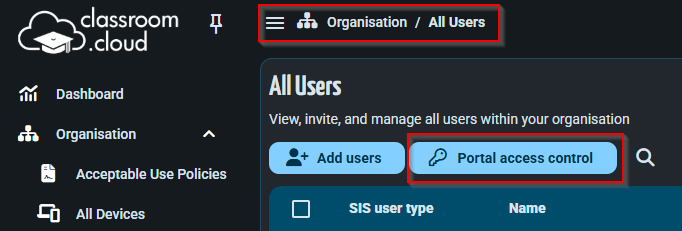
- Sign in to the classroom.cloud Web Portal as an Organisation Admin.
- Navigate to Organisation > All Users.
- Select Portal access control.
Configuration options
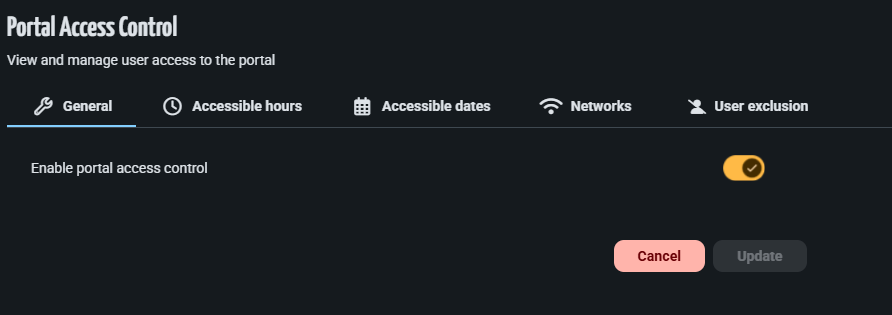
General
Enable or disable Portal Access Control for the organisation.
Accessible hours
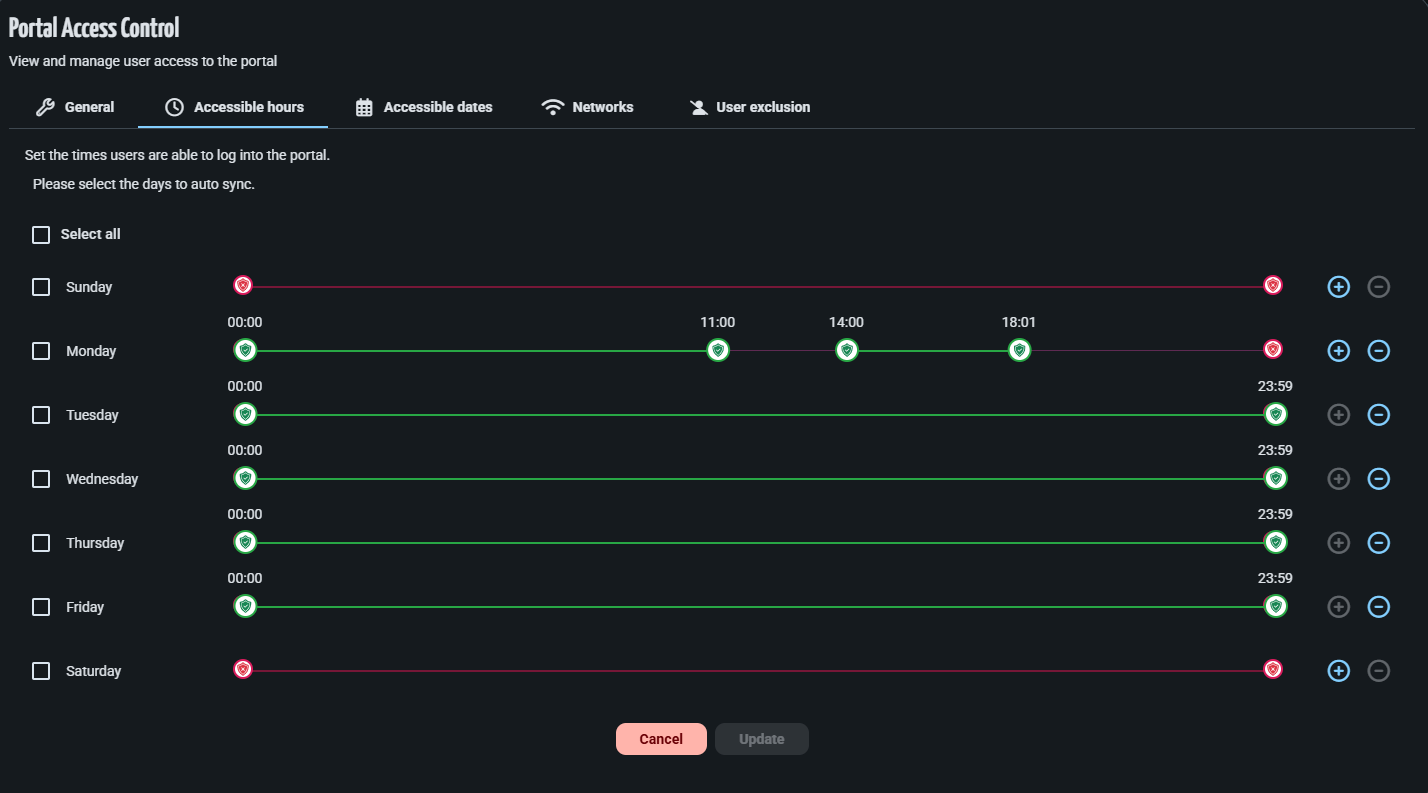
The Accessible hours tab enables Organisation Admins to define when Web Portal access is permitted for each day of the week.
By default, access is allowed from 00:00 to 23:59. Administrators can modify the start and end times to restrict access to specific periods.
To configure accessible hours:
- Select the required day(s).
- Adjust the start and end times as required.
- Click Update to save the changes.
Additional access periods can be configured for a day by selecting the + icon.
Accessible dates
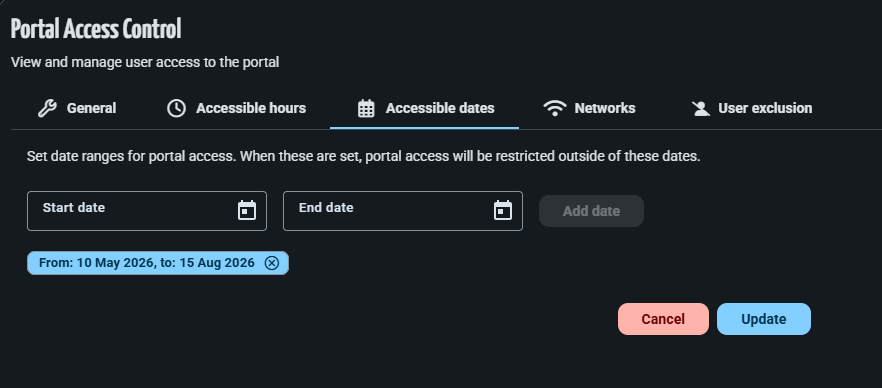
Configure the date ranges during which Web Portal access is permitted.
Any access attempt outside the configured dates will be denied.
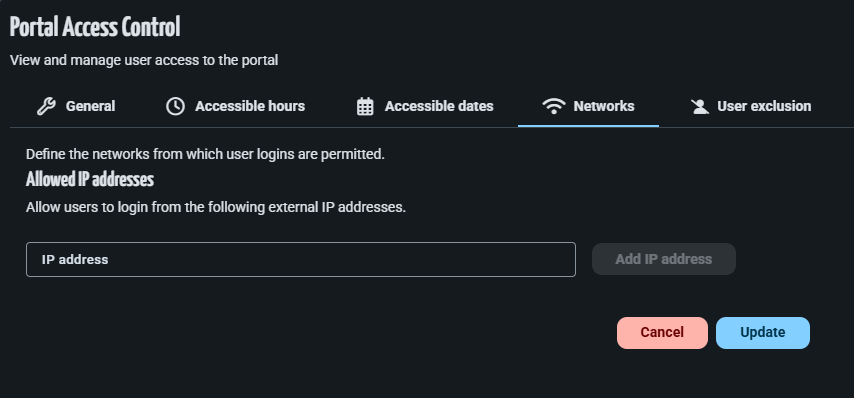
Networks
Restrict Web Portal access to approved external IP addresses.
Only Organisation Admins connecting from a configured IP address will be permitted to access the Web Portal.
To add an IP address:
- Select the Networks tab.
- Enter the external IP address.
- Click Add IP Address.
- Click Update to save the changes.
User exclusion
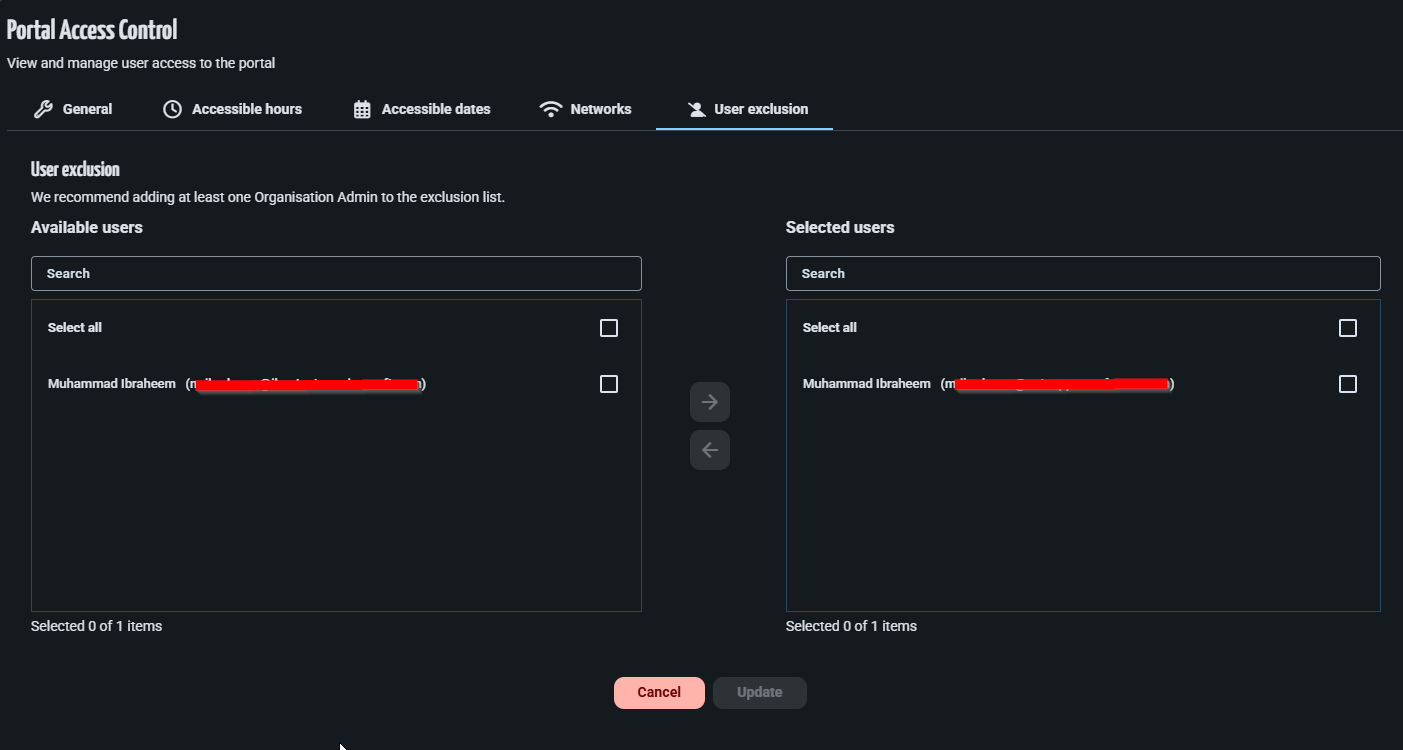
The User exclusion tab allows Organisation Admin accounts to be excluded from Portal access control restrictions.
Excluded users will continue to have access to the classroom.cloud Web Portal regardless of the configured hours, dates or IP address restrictions.
To exclude a user:
- Select the User exclusion tab.
- Select the required Organisation Admin account from the Available users list.
- Move the user to the Selected users list.
- Click Update to save the changes.
Important: We recommend adding at least one Organisation Admin to the exclusion list to prevent accidental administrative lockout.
Expected behaviour
When Portal access control is enabled, Organisation Admins will only be able to access the classroom.cloud Web Portal when all configured access conditions are met. If a restriction is violated, access to the Web Portal will be denied. Users added to the User exclusion list are exempt from these restrictions.