
It is required that a default web browser be set on all student machines. Without a default browser configured, a web browser may fail to open when a teacher begins sharing their screen.
Checking if a default browser is configured
- On a student machine, open Windows Settings and navigate to Apps > Default apps.
- Select the primary web browser used in your environment.
- On this page, you can view the default browser currently assigned to different link types.
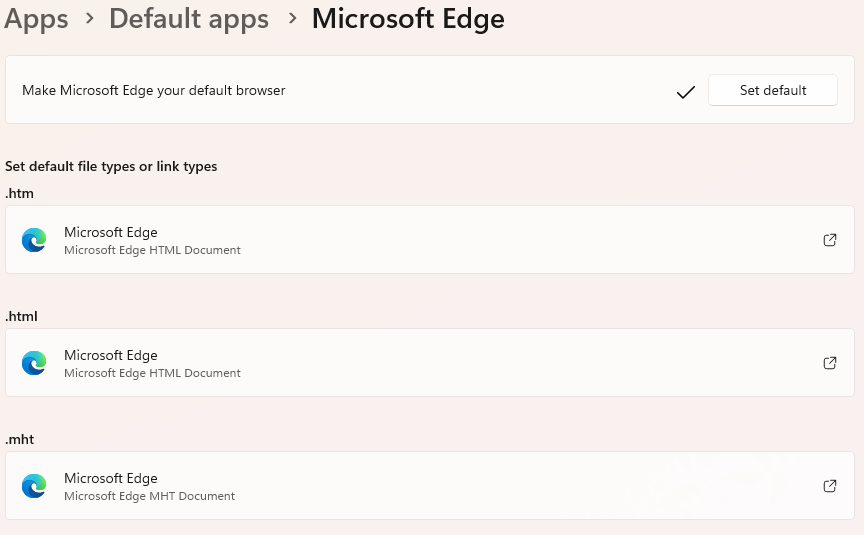
Setting a default browser
If no default browser is set for your link types, please ensure your primary web browser is assigned. You can manually configure this by clicking the Set default option at the top of the page.
Once configured, test a screen share to the device to confirm it can now successfully open the web browser.
If the device successfully receives the screen share, you can proceed with applying this change to the remaining machines. Additionally, this setting can also be deployed across your environment via Microsoft Intune or Active Directory policies.