
Overview
This article explains how to deploy the classroom.cloud Student application using the Microsoft Store app deployment method in Microsoft Intune.
The classroom.cloud Windows Student application is available through the Microsoft Store, providing an alternative deployment method for organisations using Microsoft Intune. Using the Microsoft Store version can simplify application deployment and provide support for automatic updates, reducing the need to create and deploy a new package for each classroom.cloud release.
Prerequisites
Before deploying classroom.cloud Student from the Microsoft Store:
- Ensure the Windows devices are enrolled in Microsoft Intune.
- Before deploying the Microsoft Store version, you must configure the classroom.cloud Account ID, Site ID and Region information through your Intune configuration policy. The Microsoft Store application does not contain your organisation’s classroom.cloud site configuration.
- For more information about configuring classroom.cloud Student through Microsoft Intune, see pages 11–15 of the deployment guide Deploying the classroom.cloud Student using Microsoft Intune
- If the classroom.cloud Student is already installed using the Setup.exe or MSI installer, uninstall the existing version before deploying the Microsoft Store version.
Recommended approach when migrating from an LOB or Win32 deployment
If classroom.cloud Student is already installed through an Intune LOB or Win32 deployment:
- Ensure the Account ID, Site ID and Region are configured in your Intune policy.
- Remove the existing LOB/Win32 assignment from the devices. This does not uninstall the existing application.
- Create and assign the classroom.cloud Student Microsoft Store app to the same devices.
- If the Store version is newer than the installed version, it can upgrade the existing installation where supported. If the same version is currently installed, we recommend waiting for a newer version to become available in the Microsoft Store before migrating, rather than uninstalling the existing version.
- Verify the deployment under Device install status in Intune.
Recommended: Test the migration on a small number of devices before deploying it across your environment.
Deploy classroom.cloud Student from the Microsoft Store
- Open Microsoft Intune
-
- Sign in to the Microsoft Intune admin centre.
- From the left-hand menu, select Apps > Windows.
- Select Create.
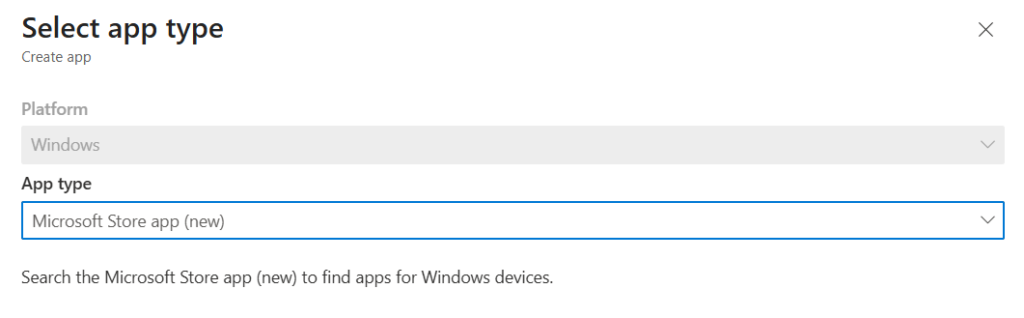
- Select the Microsoft Store app type
-
- In the Select app type pane, select Microsoft Store app (new).
- Select Select.
- Search for classroom.cloud Student
-
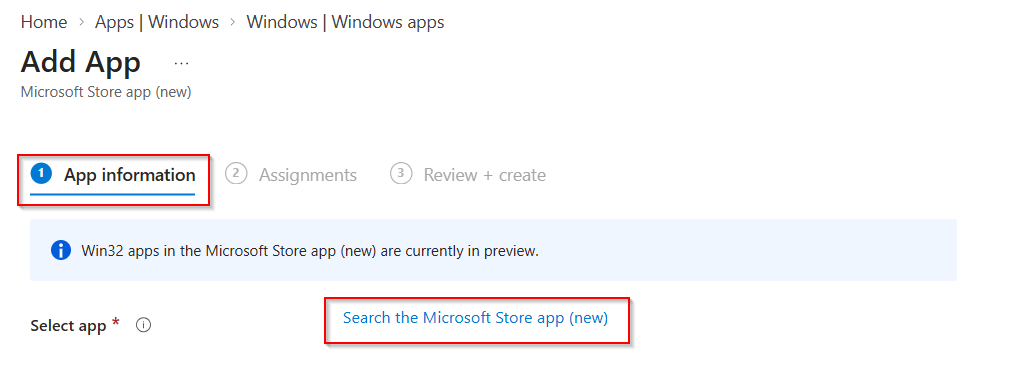
- On the App information page, select Search the Microsoft Store app (new).
-
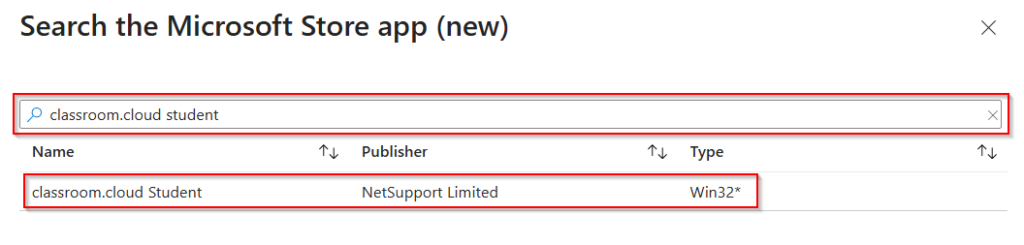
- In the search box, search for classroom.cloud Student.
- If required, you can also search using the classroom.cloud Student application ID: XP8C5CTKMJMHV9.
- The classroom.cloud Student application should appear in the search results.
- Select the application and then select Select.
- Configure the application
-
- The App information page populates with the store list information for the app. Optionally, you can add notes, a logo or a category.
- Select Next.
- Configure assignments
On the Assignments page, choose how classroom.cloud Student should be deployed.
-
- The available assignment types include:
Required: Automatically installs on assigned devices.
Available for enrolled devices: Users can install the app from the Company Portal.
Uninstall: Removes the app from selected devices.
Note: The Uninstall option only works if the app was deployed initially via Intune using a Required or Available assignment. - Select Add group and choose the required device or user group.
- Configure any additional assignment options required by your organisation.
- Select Next.
- The available assignment types include:
- Review and create
-
- On the Review + create page, review the application and assignment settings.
- If everything is correct, select Create.
- The classroom.cloud Student application will now appear in Apps > All apps.
- The application will deploy according to the assignment settings.
Monitor the deployment
You can monitor the classroom.cloud Student deployment from Microsoft Intune.
- Sign in to the Microsoft Intune admin centre.
- Go to Apps > All apps.
- Select classroom.cloud Student.
- Under the Monitor section, select Device install status.