
The classroom.cloud Tech Console is now available in the Microsoft Store, providing a faster and simpler installation experience for supported Windows devices. Once installed, future updates are delivered automatically through the Microsoft Store, reducing the need for manual application upgrades.
Before you begin
If the classroom.cloud Tech Console is currently installed using the traditional Setup.exe or MSI installer, it is recommended that you uninstall the existing installation before installing the Microsoft Store version.
The Microsoft Store version uses a different installation and update mechanism from the traditional installer. Windows treats these as separate installations rather than as an upgrade. If the existing Setup.exe or MSI installation is not removed first, both versions of the Tech Console may be installed on the same device.
Installing the Tech Console
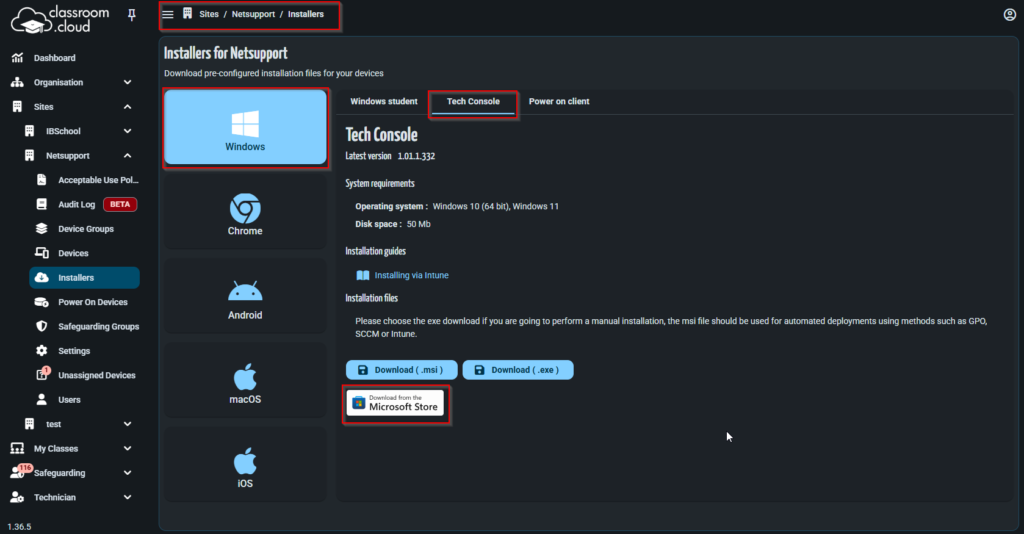
A direct link to the Microsoft Store is available within the classroom.cloud Web Portal.
- Sign in to the classroom.cloud Web Portal as an Organisation Admin or Site Admin.
- Navigate to Sites > [Site Name] > Installers.
- Select Windows.
- Select Tech Console.
- Scroll to the bottom of the page and select the Microsoft Store link to open the application page.
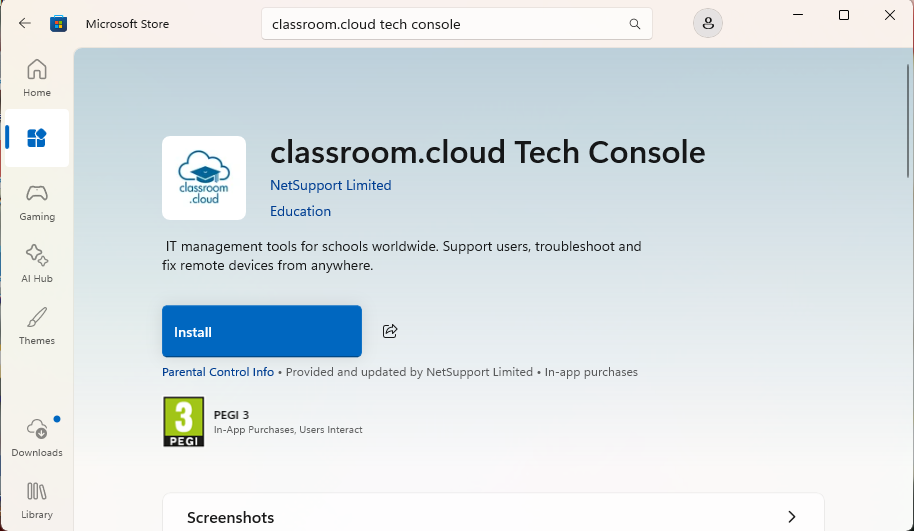
Alternatively, you can install the Tech Console directly from the Microsoft Store.
- Open the Microsoft Store on the Windows device.
- Search for classroom.cloud Tech Console.
- Select the application from the search results.
- Select Install.
- Wait for the installation to complete.
Deploying the classroom.cloud Tech Console via Microsoft Intune
Deploying the Microsoft Store app listing via Microsoft Intune provides the added benefit of enabling the app to automatically update when a new version is released and published to the store. Intune performs regular checks on the version installed on your assigned devices and compares it to the version published in the Microsoft Store. If the installed version is older than the one published in the store, the app automatically updates to the latest version.
Note: You can control whether the app auto-updates via Intune.
How to create the app deployment in Intune
Follow these steps to deploy the classroom.cloud Tech Console from the Microsoft Store to your chosen devices using Intune:
- Sign in to the Microsoft Intune admin centre and select Apps from the menu.
- Select Windows > Windows apps.
- Click Create.
- In the App type drop-down, choose Microsoft Store app (new).

- Click Select.
- In the App information tab, choose Search the Microsoft Store app (new).

- In the search box, enter the following ID: XP8C5T7T5L6FQ4
- This returns the classroom.cloud Tech Console. Select this listing and click Select.
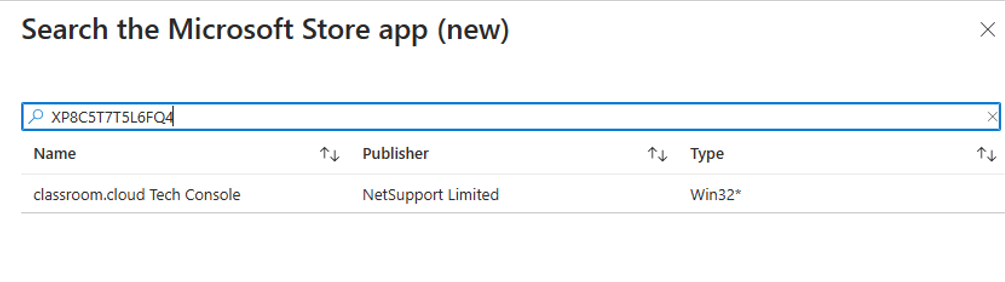
- The App information tab populates with the store list information for the app. Optionally, you can add notes, a logo or a category.
- Click Next.
- On the Assignments screen, choose how the app should be assigned to your devices:
– Required: Automatically installs on assigned devices.
– Available for enrolled devices: Users can install the app from the Company Portal.
– Uninstall: Removes the app from selected devices.
Note: The Uninstall option only works if the app was deployed initially via Intune using a Required or Available assignment. - Click Add Group to assign the app to your required devices.
- Select the appropriate groups and click Select.
- On the Review and Create screen, review the options selected, then click Create.
Once created, the classroom.cloud Tech Console app appears in the list of Windows apps and deploys according to your assignment settings.
Monitor the deployment
To check the deployment status:
1. In the Intune portal, go to Apps > All Apps and select the classroom.cloud Tech Console.
2. Click Device install status to view the deployment progress.
Benefits of the Microsoft Store version
Installing the NetSupport Tech Console from the Microsoft Store provides the following benefits:
- Simplified installation on supported Windows devices.
- Automatic delivery of future application updates.
- Reduced administrative effort by removing the need for manual application upgrades.