
NetSupport recently released an updated version of NetSupport Notify and NetSupport Manager to address security vulnerabilities raised with the Gateway\Connectivity Server. NetSupport School shares the Gateway\Connectivity Server component with these products however NetSupport School utilises this in a different way to NetSupport Manager and NetSupport Notify.
As the Gateway\Connectivity Server component is shared with the other NetSupport products, for example the NetSupport School Connectivity Server can be used to host connections from NetSupport Notify Agents and Consoles, we have now released an updated version of NetSupport School version 15.12.0001 to include the same security updates. This update also now includes the ability to change the NetSupport School Connectivity Server key to a new higher AES encryption algorithm.
This article includes information on how to update NetSupport School to the latest version and if you are applying the Connectivity Server key via AD or Intune policies, how you can update the encrypted version of the Connectivity Server key applied your Tutor Console and Student devices to the new AES encryption algorithm.
Upgrade the NetSupport School components
The updated version of NetSupport School 15.12.0001 that incorporates the security patches for the NetSupport Manager and Notify is available for download from our website at https://www.netsupportschool.com/download/ Alternatively, if you have registered on the My Support area, you can log in and download from here https://support.netsupportsoftware.com/
The below outlines the procedures available to update the different NetSupport School components.
Upgrading the NetSupport School Connectivity Server
We recommend updating your NetSupport School Connectivity Server component first to version 15.12.0001.
Note : If you are also using a shared NetSupport School Connectivity Server with NetSupport Notify, there is no requirement to install NetSupport Notify after updating to the 15.12.0001.
For NetSupport School Connectivity Server environments to perform the update you will need to ensure that you have the required NetSupport School installer files ready, this will include the below:
- Setup.exe – NetSupport School full installer file for version 15.12.0001.
- NSM.lic – Your version 15.12 NetSupport School License file will be required.
Please place these files in the same folder location on the NetSupport School Connectivity Server. Next follow the steps below to start the NetSupport School installation over the top of the existing NetSupport School Connectivity Server.
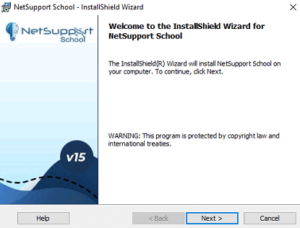
- Click Next on the Welcome Screen.
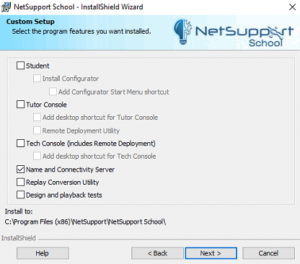
- This will detect the previously installed components, click Next to continue.
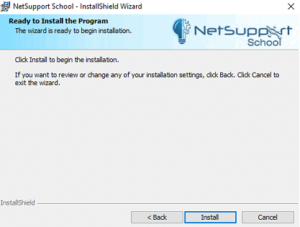
- Click Install to start the installation.
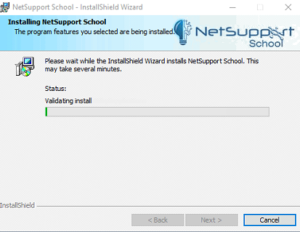
- The installation of the new Connectivity Server version will commence.
- Click Finish to complete the installation.
Upgrading the NetSupport School Students
To perform the update of the NetSupport School Agents you will need to ensure that you have the required NetSupport School installer files ready, this will include the below:
- Setup.exe or NetSupport School.msi – NetSupport School full installer file for version 15.12.0001.
- NSM.lic – Your version 15.12 NetSupport School License file will be required.
- Client32u.ini – The Student configuration.
- NSS.ini –The Install parameters file (used for automated installs to set which NetSupport School components to install, check this is configured to install the required components i.e. Student component).
Please place these files in the same folder location. There are then different methods available to update your NetSupport School Student installations, the method chosen may depend on the initial deployment method used to install the Students onto your devices. Available options include
- Local installation
- Active Directory Group Policy Deployment
- Intune Deployment
- NetSupport School Deploy tool
- Deployment via other 3rd party deploy tools
Please find links to resources below to assist with updating the NetSupport School Agents.
Intune Deployment: https://kb.netsupportsoftware.com/knowledge-base/deploying-netsupport-school-via-microsoft-intune/
Active Directory Group Policy Deployment: https://kb.netsupportsoftware.com/knowledge-base/installing-netsupport-manager-or-netsupport-school-via-active-directory-group-policy-software-deployment/
Local installation: https://help.netsupportschool.com/en-windows/Content/Windows/Installation/starting-the-installation.html
Upgrading the NetSupport School Tutor Console
To perform the update of the NetSupport School Tutor Consoles you will need to ensure that you have the required NetSupport School installer files ready, this will include the below:
- Setup.exe or NetSupport School.msi – NetSupport School full installer file for version 15.12.0001.
- NSM.lic – Your version 15.12 NetSupport School License file will be required.
- NSS.ini – The Install parameters file (used for automated installs to set which NetSupport School components to install, check this is configured to install the required components i.e. Tutor Console).
Please place these files in the same folder location. There are then different methods available to update your NetSupport School Tutor Console installations, the method chosen may depend on the initial deployment method used to install the Tutor Console onto your devices.
Available options include
- Local installation
- Active Directory Group Policy Deployment
- Intune Deployment
- NetSupport School Deploy tool
- Deployment via other 3rd party deploy tools
Intune Deployment: https://kb.netsupportsoftware.com/knowledge-base/deploying-netsupport-school-via-microsoft-intune/
Active Directory Group Policy Deployment: https://kb.netsupportsoftware.com/knowledge-base/installing-netsupport-manager-or-netsupport-school-via-active-directory-group-policy-software-deployment/
Local installation: https://help.netsupportschool.com/en-windows/Content/Windows/Installation/starting-the-installation.html
Updating the encrypted Gateway Key values assigned to Tutor Console and Students via Policy
As well as locally configuring the NetSupport School Connectivity Server connection details to the NetSupport School Tutor Console and Students, it’s possible to also assign the NetSupport School Connectivity server connections to both Tutor Consoles and Student devices using the ADM or ADMX template files.
The latest ADMX and ADM Templates files that include the new policy to apply the AES encrypted version of the Gateway key are available to download from the following link : Template Files
If you were previously assigning the NetSupport School Connectivity Server connection details via Active Directory or Intune Policy after the update of NetSupport School to 15.12.0001 we would recommend to update any Tutor Console and Student Policies to the new AES encrypted value for the Gateway Key.
IMPORTANT: When applying the encrypted Gateway Key value via Policy to your machines ensure the value is generated using the latest Encryption utility provided upon request from the NetSupport Technical Support team. This will ensure that the value applied to your NetSupport School Tutor Consoles and Students are using the AES encryption level.
Updating the NetSupport School Connectivity Server Key applied to the Tutor Console via Policy
Within Active Directory Group Policy Management Console or Intune Policies locate the previous policy assigning the NetSupport School Connectivity Server Connection to your Tutor Consoles and choose to edit the Policy.
- Active Directory Policy location
The NetSupport School Connectivity server connection assigned to the NetSupport School Tutor Console via the Active Directory Group Policy Management Console will be located from:
Administrative Templates > NSS Tutor Settings > Network Settings > TCP/IP Settings
- Intune Policy location
Each NetSupport School Connectivity server connection assigned to the NetSupport School Tutor Console via Intune Policies will be located from:
Computer Configuration/\/NSS Tutor Settings/\/Network Settings/\/TCP/IP Settings
Within this section of the AD or Intune policy management locate the policy named Connectivity Server and edit this policy. Add the new encrypted key using the AES version of the Gateway Key within the policy under the Gateway Key (v15.12 and later Tutor Consoles) field. Remove any of the old encrypted values from this policy. The AES encrypted version of the Gateway key for the NetSupport School Student can be generated using the the latest encryption tool. The latest encryption tool can be requested from the NetSupport Support Team.
Updating the NetSupport School Connectivity Server Key applied to the Students via Policy
Within your Active Directory Group Policy Management Console or Intune Policies locate the previous policy assigning the NetSupport School Connectivity Server connection details and edit the Policy.
- Active Directory Policy location
The Gateway connection assigned to the NetSupport School Student via the Active Directory Group Policy Management Console will be located from:
Administrative Templates > NetSupport Student Settings > Connectivity > Transports>

- Intune Policy location
The Gateway connection assigned to the NetSupport School Student via Intune Policy Management will be located from
Computer Configuration/\/NetSupport Student Settings/\/Connectivity/\/Transports

Within this section of the AD or Intune policy management locate the policy named Use Name & Connectivity Server and edit this policy. Add the new encrypted key using the AES version of the Gateway Key within the policy under the Gateway Key (v15.12 and later Students) field. Remove any of the old encrypted values from this policy. The AES encrypted version of the Gateway key for the NetSupport School Student can be generated using the the latest encryption tool. The latest encryption tool can be requested from the NetSupport Support Team.