
This guide outlines the steps for users with the necessary permissions to find their account ID within the 247connect Web Portal.
Requirements
To access the account ID, users must have one of the following assigned to their active account:
- Global Administrator privileges.
- Managed User role assignment.
Users without these permissions will not be able to access the required sections of the 247connect Web Portal to obtain the account ID.
Method 1
- Log in to the 247connect Web Portal.
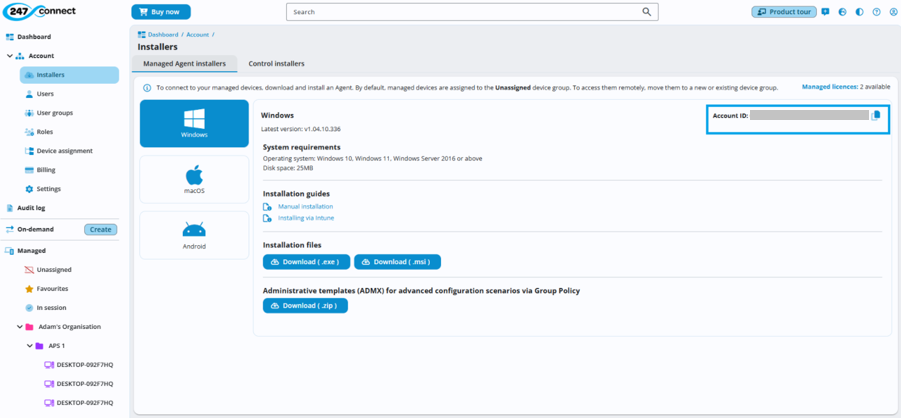
- Click Account in the side menu.
- Select Installers.
- The Managed Agent installers tab is displayed by default.
- Find the Account ID in the top-right corner of the page.
Additional information
Only users with the necessary permissions can see the account ID.
If the Accounts or Installers options are missing, check that your account has either Global Administrator access or a Managed User role assignment.
Role assignments must be linked to the user’s active account for access to be granted.
Method 2
- Log in to the 247connect Web Portal.
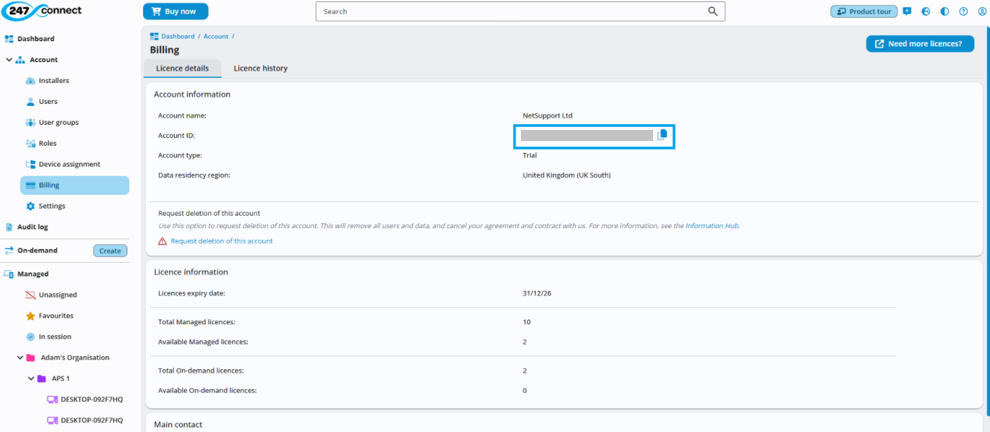
- Go to Account in the side menu.
- Click Billing.
- In the Account information section, find the Serial number field.
- Click Serial number.
- The Account ID field is displayed.
We hope this guide has helped you successfully locate your account ID in the 247connect Web Portal. If you require any additional help, our Support team will be happy to assist.