
The Default View Mode setting determines how a remote session opens when a technician selects View in the Tech Console. The available options are Watch, Share or Control, depending on the device platform. By default, the setting is configured as Watch.
The Default View Mode can be configured at either:
- Organisation level – applies to all sites within the organisation.
- Site level – applies only to the selected site and overrides the organisation-level setting.
Configure the Default View Mode for the organisation
Use this option to configure the default view mode for all sites in your organisation.
- Sign in to the classroom.cloud Web Portal.
- Navigate to Organisation > Settings > Technician.
- Under Technician features, ensure View/control devices is enabled.
- From the Default view mode drop-down list, select the required view mode.
- Click Update.
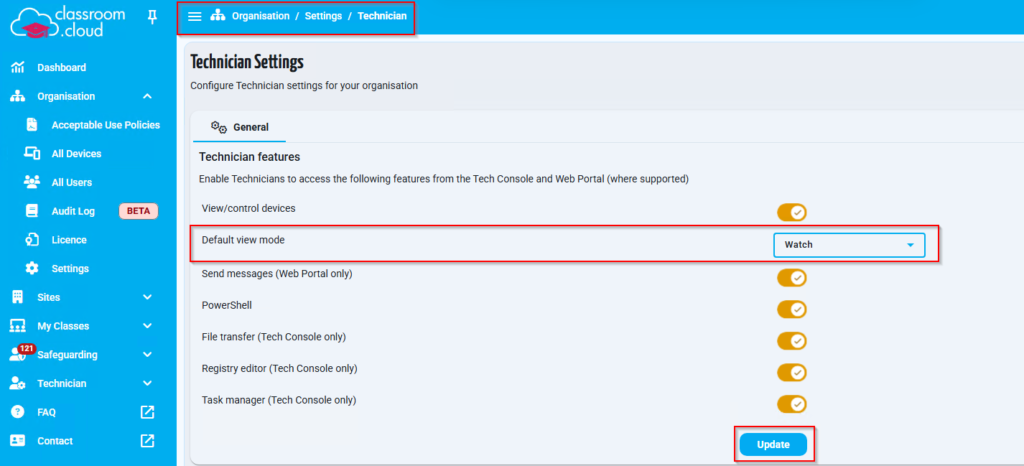
Note: This setting applies to all sites unless a site-level configuration has been specified.
Configure the Default View Mode for a site
Use this option when you want a specific site to use a different default view mode.
- Sign in to the classroom.cloud Web Portal.
- Navigate to Sites and select the required site.
- Go to Settings > Technician.
- Under Technician features, ensure View/control devices is enabled.
- From the Default view mode drop-down list, select the required view mode.
- Click Update.
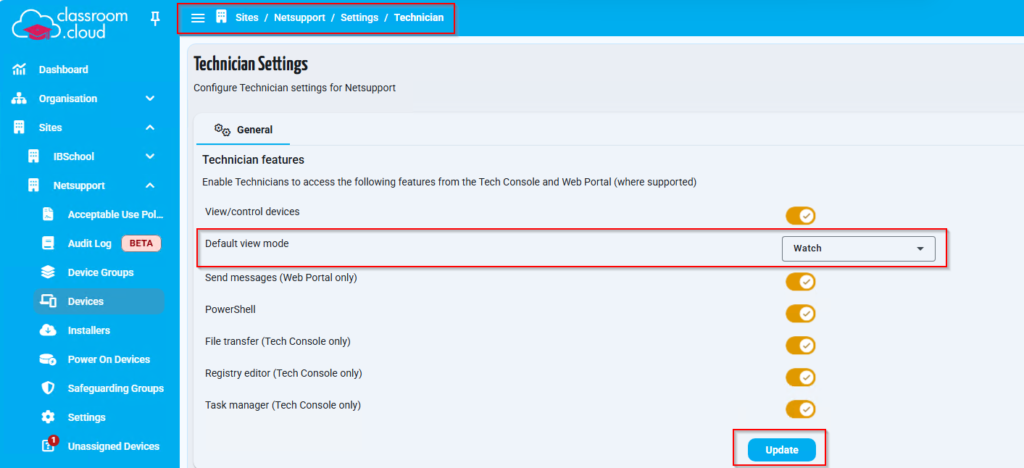
Note: The site-level setting overrides the organisation-level setting for the selected site only.