
This article explains how to configure classroom.cloud to synchronise Microsoft Teams classes using Microsoft School Data Sync (SDS). Once the integration is complete, users can connect their Microsoft Teams classes directly from within classroom.cloud.
Prerequisites
Before configuring Microsoft Teams class synchronisation with classroom.cloud, ensure the following requirements are met:
- You have the required permissions to configure Microsoft Teams integration in classroom.cloud.
- Your Microsoft 365 tenant is configured to use Microsoft School Data Sync (SDS), and your timetable or class data has been imported into SDS.
- Student devices have the classroom.cloud Student application installed, are enrolled in the classroom.cloud portal, and are assigned to the appropriate Device Group.
- Students sign in to their devices using their Microsoft Entra ID accounts.
- Users are the owners of the Microsoft Teams classes they want to synchronise.
- Users sign in to classroom.cloud using the Continue with Microsoft option.
- Users can be added to classroom.cloud using one of the following methods:
- Manual invitation using the Microsoft sign-in method, or
- User Provisioning (SCIM).
Note: If you want users to be automatically synced in classroom.cloud, configure User Provisioning (SCIM) before setting up Microsoft Teams integration. For more information, see the Guide to Setting Up User Provisioning (SCIM) in classroom.cloud.
Step 1 – Configure Microsoft Teams Classes Permissions
- Sign in to the classroom.cloud portal as an Organisation Administrator.
- Navigate to:
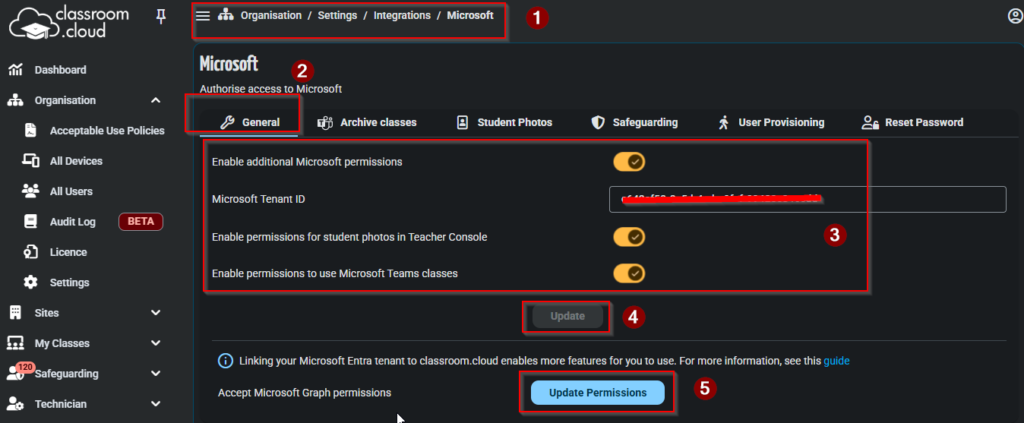
Organisation > Settings > Integrations > Microsoft
- Select the General tab.
- Configure the following settings:
- Enable Additional Microsoft Permissions
- Enter your Microsoft Tenant ID
- Enable Permissions for Student Photos in Teacher Console (optional)
- Enable Permissions to use Microsoft Teams Classes
- Click Update to save the configuration.
- Select Update Permissions and complete the Microsoft consent process.
Step 2 – Enable Microsoft Teams Class Synchronisation
Microsoft Teams class synchronisation must be enabled at every level where classes will be used.
Organisation Level
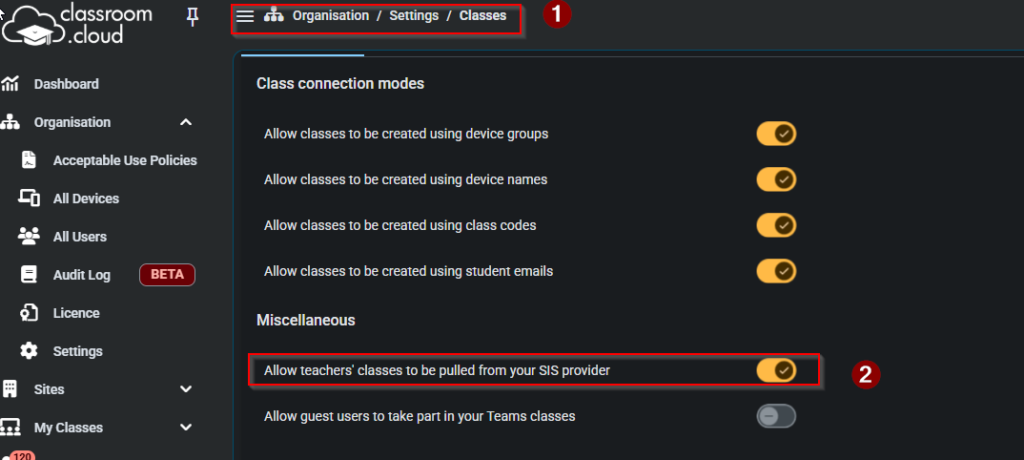
Navigate to: Organisation > Settings > Classes
Select the General tab
Enable: Allow teachers’ classes to be pulled from your SIS provider
Site Level
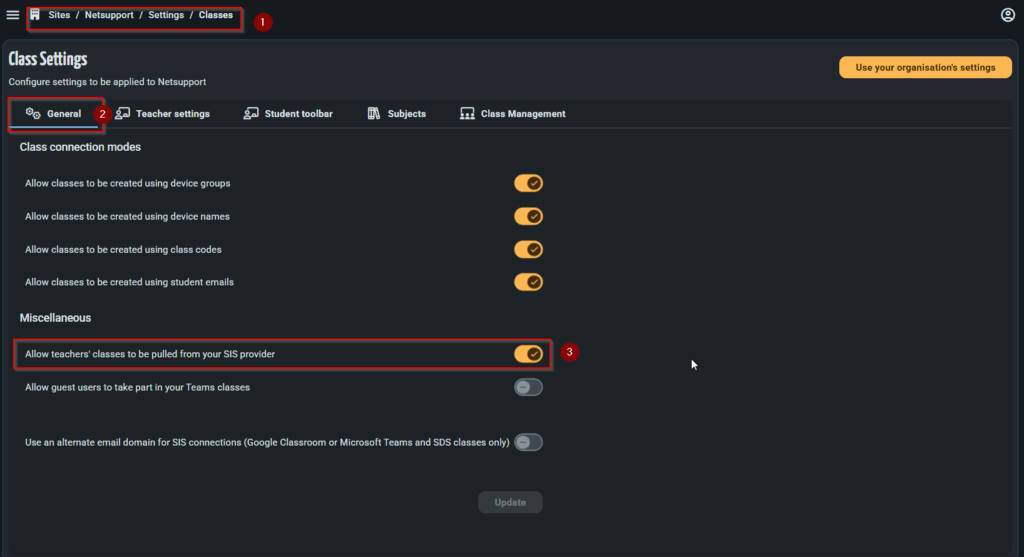
Navigate to: Sites > [Site Name] > Settings > Classes
Select the General tab
Enable: Allow teachers’ classes to be pulled from your SIS provider
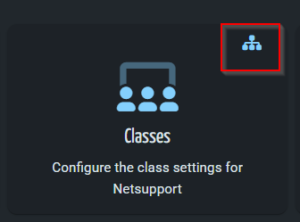
Note: If you are using the organisation-level settings for all sites, you can skip the site-level configuration. The following icon indicates that the site is inheriting the organisation-level settings.
Launching a class
When a User signs in to classroom.cloud with their Microsoft account details, their classes will automatically appear on the My Classes page. When the required class is selected, classroom.cloud will connect to students who are logged into a Windows device with their Azure AD account details.
Troubleshooting
If Microsoft Teams classes do not appear:
- Verify the User signed in using Continue with Microsoft.
- Confirm Microsoft integration has been configured correctly at the Organisation level and Site level.
- Ensure Allow teachers’ classes to be pulled from your SIS provider is enabled at both the Organisation and Site levels.
- Verify the Microsoft Tenant ID is correct.
- Confirm Microsoft administrator consent has been granted by selecting Update Permissions.
- Ensure the User is the owner of the Microsoft Teams class.
- Verify that Microsoft School Data Sync (SDS) has been configured correctly within your Microsoft 365 environment.